
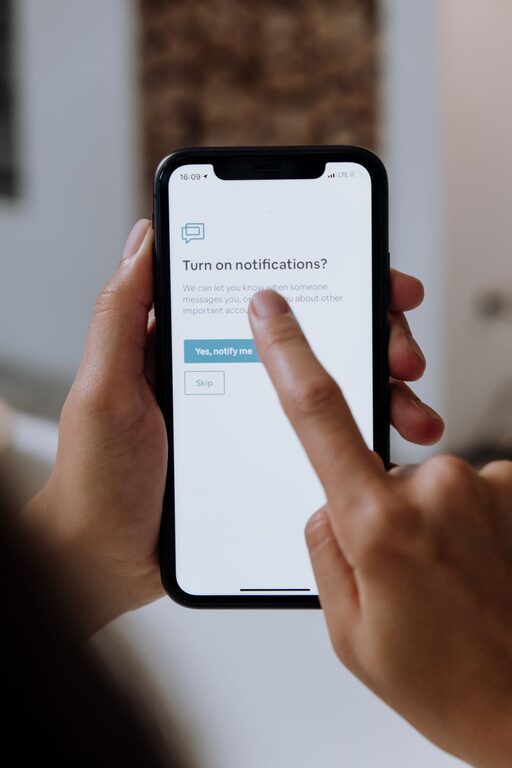
In today’s digital world, notifications are a constant presence on our smartphones, tablets, and computers. While they can be helpful reminders or alerts, they often become a source of distraction and stress. Setting boundaries with notifications is essential for maintaining focus, improving productivity, and protecting your mental well-being.
In this post, we’ll explore practical tips to help you manage your notifications effectively and create a healthier digital environment.
Why Setting Boundaries with Notifications Matters
Notifications are designed to grab your attention. Every ping, buzz, or pop-up can interrupt your workflow or personal time. Constant interruptions can make it hard to concentrate, increase stress, and even disrupt your sleep. Creating clear boundaries around when and how you receive notifications helps you regain control over your time and attention.
Tips for Managing Notifications Effectively
1. Customize Notification Settings for Each App
Not all notifications are equally important. Start by reviewing the notification settings on your devices:
– Prioritize essential apps: Keep notifications active only for apps that require your immediate attention, such as calendar reminders or messaging from close contacts.
– Turn off non-essential notifications: Disable alerts from apps that aren’t urgent, like games, social media, or shopping apps.
– Use “silent” notifications: For some apps, you might want notifications to appear quietly without sounds or vibrations.
Adjusting these settings individually helps reduce unnecessary interruptions.
2. Use “Do Not Disturb” and Focus Modes
Most smartphones and computers have features like “Do Not Disturb” or “Focus Mode” that temporarily silence notifications:
– Schedule quiet times: Set specific hours during the day when notifications will be muted, such as during work hours or before bedtime.
– Allow exceptions: Customize which contacts or apps can still send notifications during quiet times for emergencies.
– Quick activation: Use quick toggles to turn these modes on and off as needed.
These features help you stay present when concentrating or resting.
3. Declutter Your Notification Center
A cluttered notification center can be overwhelming and increase anxiety:
– Clear notifications frequently: Mark notifications as read or clear them regularly to avoid feeling overwhelmed.
– Group notifications: Many devices group notifications by app, making it easier to view and manage them.
– Disable badges: Consider turning off notification badges (the red icons with numbers) on app icons if they cause stress.
Keeping your notification center organized helps maintain a sense of calm.
4. Limit Notifications on Desktop Devices
Desktop notifications can be just as distracting as those on mobile devices:
– Turn off browser notifications: Only allow notifications from websites you trust and find useful.
– Manage app notifications: Use system settings to control which desktop apps can send alerts.
– Use full-screen or focus modes: When working, use features that minimize interruptions, such as full-screen mode or dedicated focus apps.
Creating a distraction-free workspace improves concentration and efficiency.
5. Set Clear Times for Checking Notifications
Instead of responding to every notification immediately, try setting specific times to check your messages:
– Batch process notifications: Allocate certain blocks of time during the day to deal with emails, messages, or social media.
– Avoid constant checking: Resist the urge to check notifications as soon as they arrive.
– Communicate your availability: Let friends, family, or colleagues know your preferred times for responding.
This approach helps reduce the stress of constant alerts and improves your workflow.
6. Use Third-Party Apps to Manage Notifications
There are apps designed to help control digital distractions:
– Notification managers: These apps let you customize and filter notifications more extensively than default settings.
– Focus and time management apps: Tools that block or limit app use during certain times can complement notification management.
– Analytics apps: Some apps track your notification habits, helping you understand and adjust your usage.
Explore these options if you need more support with managing interruptions.
7. Practice Mindful Notification Habits
Be intentional about how you interact with notifications:
– Ask if the notification is necessary: Before enabling notifications for a new app, consider how often it will interrupt you.
– Regularly review your settings: Apps update frequently, so check and adjust notification preferences periodically.
– Prioritize well-being: If notifications cause stress or disrupt sleep, take steps to limit their impact.
Mindfulness encourages a balanced relationship with technology.
Conclusion
Setting boundaries with notifications is a key step toward improving focus, reducing distractions, and maintaining a healthy balance between technology use and personal time. By customizing settings, scheduling quiet periods, organizing your notification center, and practicing mindful habits, you can regain control over your digital life.
Try implementing these tips gradually, and find the balance that works best for you. With consistent effort, managing notifications can become a simple yet powerful part of your daily routine.